Car Parking Multiplayer for PC
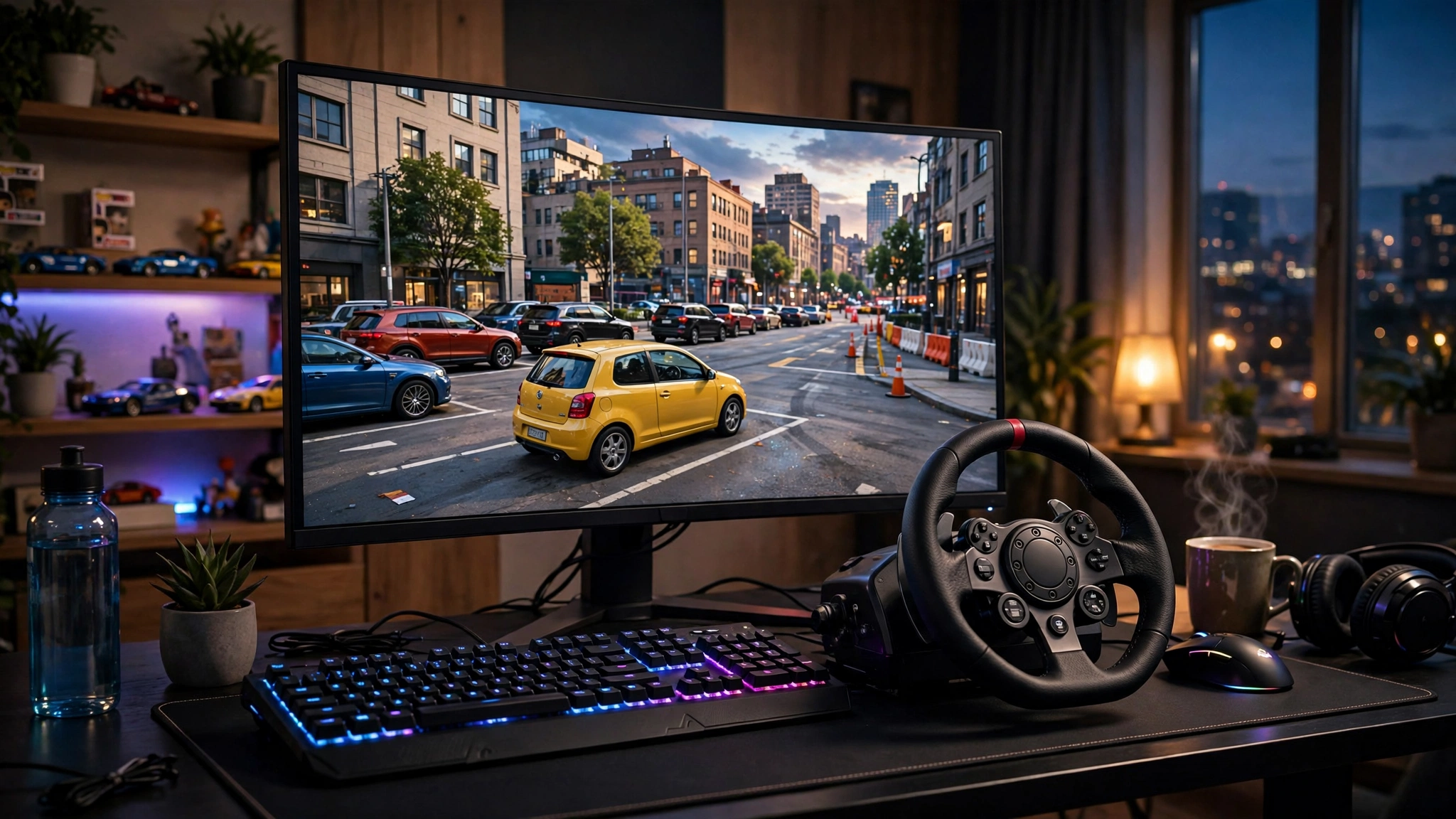
Car Parking Multiplayer was designed for phones, but some experiences are simply better on a bigger screen. Playing on a PC gives you a wider view of the road, more precise control with a keyboard and mouse, and the comfort of a proper desk setup for long multiplayer sessions. Whether you want to admire your customised garage in greater detail or compete in online events without draining your phone battery, the PC route is worth exploring. In this guide we explain whether CPM runs on computers, the main ways to get it working, the best settings to use and the hardware you will need.
Can You Play CPM on PC
The short answer is yes, with one caveat: there is no official Windows or macOS version of Car Parking Multiplayer. The game is built for Android and iOS, so it does not install on a computer the way a normal PC game would. The workaround is an Android emulator, a program that creates a virtual Android phone inside your computer and lets you install and run mobile apps there. It sounds technical, but modern emulators make the process straightforward, and once set up, the game runs much like it does on a phone, only larger and sharper.
Method 1: Android Emulator
An emulator is the most popular way to play CPM on a Windows PC. Here is how to set it up:
- Download and install a well-known Android emulator such as BlueStacks on your PC.
- Launch the emulator and sign in with your Google account, just as you would on a new Android phone.
- Open the Google Play Store inside the emulator, search for Car Parking Multiplayer and install it.
- Open the game, let it download any extra data it needs and sign in or start a new profile.
- Set up your controls: map steering, acceleration, braking and camera to keys you find comfortable, and test them in free roam before joining multiplayer.
Method 2: Playing on a Mac
Mac owners can follow the same idea with an emulator built for macOS. Several popular emulators offer Mac versions that run on both Intel-based Macs and newer Apple Silicon models, though performance varies between them. The steps mirror the Windows process: install the emulator, sign in with a Google account, install the game from the Play Store and configure your controls. On Apple Silicon Macs, check that the emulator you choose explicitly supports the M1, M2 or M3 chips, as older builds may run through a compatibility layer with reduced performance.
Best Settings for PC
Getting the game to feel right on a computer takes a little tuning:
Graphics
Raise the resolution to match your monitor for a crisp image, but keep the graphics quality at a level your PC handles smoothly. A stable frame rate matters more than maximum detail when you are threading through tight parking spaces.
Key Mapping
Spend ten minutes setting up keys that feel natural: WASD or arrows for steering and pedals, the spacebar for the handbrake and nearby keys for the camera. Save the profile so you do not have to redo it.
Performance
Close heavy background programs while playing, give the emulator enough RAM in its settings, and enable virtualisation in your BIOS if the emulator asks for it.
System Requirements
Emulators are more demanding than the game itself, so your PC needs some headroom. As a sensible minimum, aim for a modern dual-core processor or better, at least 8 GB of RAM, a few gigabytes of free storage and a graphics chip with current drivers. A quad-core CPU, 16 GB of RAM and an SSD will give you a noticeably smoother experience. Always check the system requirements published by the emulator you choose, since they vary.
Emulator Options Compared
BlueStacks is the name most players meet first, but it is not the only good emulator, and the best choice depends on your PC and your priorities. All of the well-known options below run the Play Store and can install Car Parking Multiplayer; they differ mainly in how heavy they feel, how flexible their controls are and how much tweaking they invite. Whichever you pick, download it from its official website, as installer copies from other pages are a common source of unwanted extra software.
| Emulator | Generally known for | Worth knowing |
| BlueStacks | All-round polish and a large user base | Feature-rich, so it prefers a reasonably capable PC |
| NoxPlayer | Lightweight feel and flexible control mapping | Popular with players who like to fine-tune their setup |
| LDPlayer | Gaming-focused performance | Aimed at smooth play and higher frame rates |
| MEmu | Flexibility and running multiple instances | Handy if you test different accounts or settings |
| GameLoop | Simple, game-first presentation | Best known for big competitive titles |
If your PC is older, start with one of the lighter options and modest settings; if it is a strong gaming machine, the heavier all-rounders will reward you with smoother menus and faster loading. There is no wrong answer here, and many players try two before settling on the one that simply feels right on their hardware.
Step by Step: Full Setup
The quick method above gets you playing, but this fuller walkthrough includes the preparation and checks that prevent most problems later. Work through it in order the first time you set up.
- Prepare your PC. Close unnecessary programs, make sure you have several gigabytes of free storage, and check whether virtualisation is enabled in your BIOS or UEFI settings, as emulators run far better with it on.
- Download the emulator from its official website and run the installer. Decline any optional extras the installer offers that you do not need.
- Launch the emulator and let it finish its first-time setup. This can take a few minutes while it prepares its virtual device.
- Sign in with your Google account inside the emulator, exactly as you would on a new Android phone, so the Play Store works properly.
- Open the Play Store, search for Car Parking Multiplayer and install it. Using the store means you receive the genuine, current version of the game.
- Open the game and allow extra downloads to finish before judging performance, as first launches often fetch additional data in the background.
- Adjust the emulator settings before serious play: choose a resolution your monitor and graphics chip handle comfortably, and give the virtual device a sensible share of processor cores and memory rather than everything your PC has.
- Map your controls and save the profile, then test everything in free roam: steering, pedals, handbrake, camera and any buttons you use for lights or indicators.
- Sign in to your game account if you have one, confirm your garage has loaded as expected, and only then join online sessions.
If something goes wrong during setup, it is usually one of three things: virtualisation is off, the emulator has been given too little memory to work with, or an over-keen security program is interfering with the install. Fix those first before trying more complicated solutions.
Keyboard Controls and Key Mapping Guide
Good key mapping is the difference between CPM feeling like a proper PC game and feeling like a phone game stretched across a monitor. Emulators let you place virtual touches anywhere on the screen and bind them to keys, so build a layout around your fingers rather than copying someone else’s exactly. The arrangement below is a sensible starting point that many driving players find comfortable.
- W and S, or the up and down arrows: accelerate and brake or reverse.
- A and D, or the left and right arrows: steer left and right.
- Spacebar: handbrake, for tight turns and holding the car on slopes.
- C: change camera view, so you can switch quickly when parking.
- Shift: a spare key many players use for a frequently needed function they want under a strong finger.
- Mouse: look around and operate menus, garage screens and chat without reaching for extra keys.
Two habits make keyboard driving much better. First, tap steering keys in small presses instead of holding them down, because a keyboard cannot turn a wheel gradually the way a thumb slider can, and short taps keep the car composed in tight bays. Second, save separate profiles if your emulator allows it: a careful parking layout and a relaxed cruising layout can save constant adjustment. Spend your first session in single player, adjust one key at a time, and stop changing things once your hands stop thinking about them.
Fixing Lag on PC
Lag in an emulator rarely means your PC is simply too weak; it usually means the virtual device and the real machine are fighting over resources or using awkward settings. Start with the biggest wins. Enable virtualisation if the emulator warns it is off, because that single change can transform performance. Give the emulator a fair share of your processor and memory in its settings, but leave enough for Windows or macOS to breathe, as starving the host system makes everything stutter. If the emulator offers a choice of graphics mode or renderer, try the alternative option once and keep whichever feels smoother on your hardware.
Then work through the smaller gains. Lower the emulator resolution a step, and reduce the in-game graphics quality before touching anything else, since a stable frame rate matters more than sharp shadows in a parking game. Close browsers, launchers and recording tools you are not using, keep your graphics drivers up to date, and let laptops run on mains power with a performance power plan rather than a battery-saving one. For online play, remember that some lag is your connection, not your PC: a wired network cable, or simply playing closer to the router, often fixes multiplayer stutter that no setting can.
Playing on a Big Screen: Pros and Cons
The advantages are immediate. Parking is easier when you can actually see the lines, mirrors and gaps around your car, and tight manoeuvres benefit from the wider view and the finer control a keyboard gives for small corrections. Your garage looks better, long sessions are more comfortable at a desk, your phone stays charged and cool, and recording or streaming your play for friends is far simpler from a computer. For social players, typing in chat with a real keyboard during meets is a small luxury you quickly stop wanting to give up.
The trade-offs are real too. An emulator is another layer between you and the game, so it needs setting up, uses more of your computer’s resources than a native program would and can occasionally misbehave after updates to the game, the emulator or your system. You lose the pick-up-and-play freedom of a phone, steering on keys takes practice compared with a touch slider, and you are tied to your desk. Most players who try both keep the PC for long, comfortable sessions and the phone for quick games, which is honestly the best of both worlds.
FAQs
No. There is no official Windows or macOS version, so an Android emulator is currently the practical way to play on a computer.
If your progress is linked to a game account or cloud save, signing in with the same account in the emulator should restore it. Guest accounts that were never linked may not transfer.
Many emulators support gamepads, and some players prefer them for driving games. Check your emulator’s controller settings and map the buttons to match the on-screen controls.
Emulators from established names are widely used for exactly this purpose. The safety rules are the same as for any software: download only from the emulator’s official website, keep it updated, and avoid modified installer copies from download portals. Play the genuine version of the game from the Play Store inside the emulator rather than sideloading files from unknown pages.
Yes, in normal circumstances you are playing the same game on the same services, just through a virtual device on your PC. Make sure your game version inside the emulator is fully up to date, sign in with the same account you use elsewhere, and keep your connection stable, as version mismatches and weak networks are the usual reasons friends cannot see each other online.
This usually comes down to the virtual device rather than your PC. Check that the emulator itself is updated, that the Android version of the virtual device is recent enough for the game, and that you have free storage inside the emulator as well as on your computer. Clearing the Play Store cache in the emulator settings and restarting it fixes the problem surprisingly often; if not, creating a fresh virtual device normally does.