Best Settings for Car Parking Multiplayer
Two players can drive the same car in Car Parking Multiplayer and have completely different experiences, and the difference is almost always the settings. Graphics that are too ambitious make a budget phone stutter at the worst moment. Controls that do not suit your hands make parking feel like guesswork. Car settings that are wrong for the job turn a good car into a handful.
The good news is that the game gives you a deep set of options, and a little time spent tuning them pays off in every mode you play. This guide walks through the best settings for Car Parking Multiplayer in plain language: graphics settings for low-end and high-end phones, control choices between tilt, wheel and arrows, camera views for different jobs, car settings including TCS, ABS and ESP, and the basics of drift settings. Treat this as a starting point, then adjust everything to taste, because the perfect setup is always personal.
Why Settings Matter More Than You Think
Settings sit between your intentions and the car’s behaviour. If the frame rate drops in a busy online lobby, your inputs arrive late and every manoeuvre feels clumsy. If steering is too sensitive, you will constantly overcorrect in tight bays. If the driving aids fight your driving style, the car will feel either nervous or dull. None of these problems mean you are a bad driver; they mean the game is not yet configured for you and your phone.
The approach in this guide is simple. First, make the game run smoothly on your device, because smoothness underpins everything else. Second, choose controls and cameras that match how you play. Third, set the car’s electronic aids to support your current skill level. Only then should you touch tuning and drift-specific settings, because those build on a stable foundation.
Graphics Settings for Low-End Phones
If your phone struggles, prioritise frame rate over beauty. A smooth thirty frames per second with simple graphics beats a slideshow with pretty reflections every time, especially in parking levels where timing matters.
Start by lowering the overall graphics quality or resolution setting to low or medium. Turn off or reduce demanding extras such as shadows, reflections and anti-aliasing if the game offers those toggles. These effects look lovely in screenshots but cost a great deal of performance on weaker graphics chips. Reducing the draw distance, which controls how far ahead the game renders detail, can also help in the open world.
Next, limit background activity. Close other apps before playing, turn off battery saver modes that throttle performance, and make sure the phone is not overheating, because hot phones slow themselves down to cool off. Playing while charging can add heat, so if you must charge, use a slow charger and take breaks. Finally, keep some free storage space; a nearly full phone can stutter as the system struggles to manage memory.
Test your changes in a busy online area rather than an empty car park, because that is where performance is tested hardest. If the game stays smooth there, it will be smooth everywhere.
Graphics Settings for High-End Phones
On a powerful phone you can afford to enjoy the visuals, but more is not always better. Start at high settings and watch for the signs of strain: sudden stutters when many cars appear, the phone getting very hot within minutes, or the battery draining alarmingly fast. Any of those means you should step one setting down.
A sensible high-end setup keeps resolution and texture quality high while being cautious with the most expensive effects. Shadows and reflections at medium often look nearly as good as maximum while costing far less performance. If the game offers a frame rate option, choose the highest stable value your phone can sustain rather than an unstable maximum; consistency feels better than occasional peaks.
Remember that high settings also affect heat and battery life during long sessions. For a relaxed evening of cruising with friends, slightly reduced settings can keep the phone cooler and the frame rate steadier for longer. Save the maximum eye candy for short photo sessions rather than marathon play.
| Setting Area | Low-End Phones | High-End Phones |
|---|---|---|
| Overall quality | Low to medium | High, one step below maximum |
| Shadows and reflections | Off or low | Medium for smooth long sessions |
| Resolution | Reduced for frame rate | High, if stable in busy lobbies |
| Background apps | Close everything first | Close heavy apps anyway |
| Priority | Smoothness above all | Stable smoothness with good looks |
Controls: Tilt, Wheel or Arrows
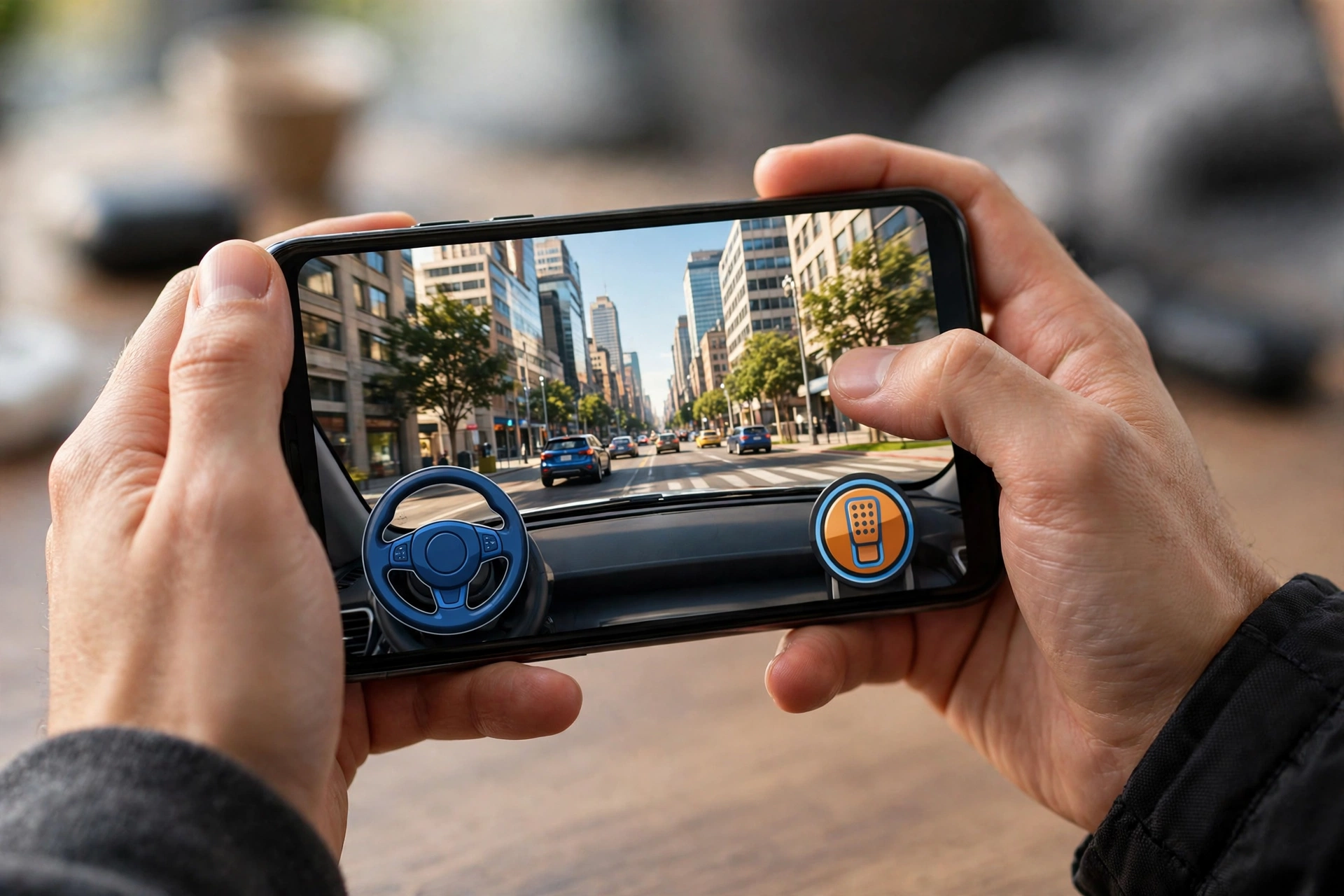
The game typically lets you steer with on-screen arrows or buttons, a virtual steering wheel, or by tilting your phone. Each has genuine strengths, and the best choice depends on your hands, your posture and what you are trying to do.
Arrows or Buttons
On-screen arrows give the most predictable inputs, which is why many precise parkers prefer them. A tap turns the wheel a known amount, making it easier to repeat manoeuvres exactly. They also work well when you are lying back or holding the phone casually. Their weakness is that steering can feel digital and less flowing on long, curving roads.
Steering Wheel
The virtual wheel feels the most like real driving and allows smooth, progressive steering through long corners. It suits cruising and flowing roads beautifully. It can be slightly harder to be exact in very tight bays, because small finger movements translate into larger steering changes than a tap on an arrow.
Tilt Control
Tilting the phone to steer is immersive and can feel wonderfully natural once learned. It demands a stable seating position and calm hands, though, and it is the hardest option to use precisely in a cramped multi-storey car park. Many players enjoy tilt for relaxed free driving but switch to buttons for serious parking levels.
Whichever you choose, adjust the steering sensitivity until the car responds the way you expect. Too sensitive and you will zigzag; too lazy and you will run wide. Change it in small steps, testing the same corner or parking bay each time, until the car feels like an extension of your hands.
Camera Views for Different Jobs
Cameras are tools, not preferences to be loyal to. The chase camera behind the car is comfortable for general driving and gives a good sense of speed and surroundings. A higher, further camera can make judging gaps in traffic easier on wide roads. For parking, a top-down or wide view often makes bay lines and nearby obstacles much clearer.
Learn to switch cameras mid-manoeuvre without feeling awkward about it. Approach in your comfortable driving view, then change to the clearest parking view for the final metres. Many experienced players also use the look-behind function while reversing instead of guessing. The right view at the right moment is worth more than any single favourite.
Car Settings: TCS, ABS and ESP
These three electronic aids shape how forgiving your car feels, and the best setting depends on your skill and your task.
Keep all three switched on while you are learning or when driving an unfamiliar powerful car. Traction control calms wheelspin on acceleration, ABS keeps the car steerable under hard braking, and stability control catches slides before they become spins. Together they make the car predictable, which is exactly what parking levels and busy traffic demand.
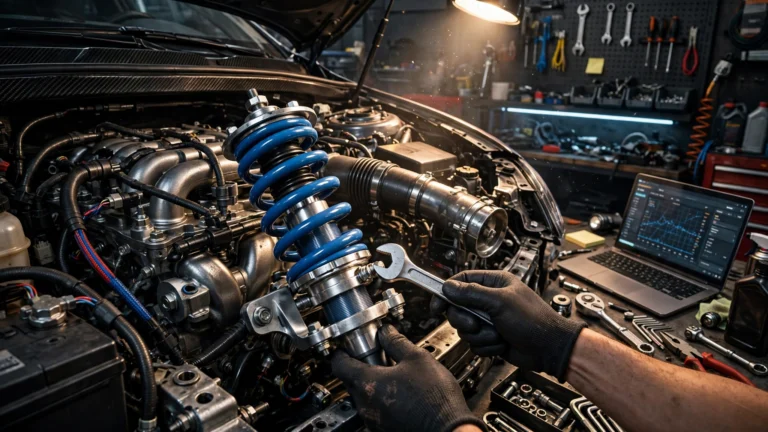
As your car control improves, experiment with reducing them one at a time. Turning off traction control first gives you more freedom to rotate the car with the throttle, which is useful for advanced driving and essential for drifting. Reducing stability control next lets the car move around more in corners. Leave ABS on the longest, because locked brakes help nobody in a tight space. Change one aid, drive for a while, and only then change another; changing everything at once teaches you nothing about what each one does.
Drift Settings Basics
Drifting asks the car to do the opposite of normal driving: instead of gripping, the rear wheels slide in a controlled way. The settings that help are therefore the reverse of the safe everyday setup.
Start with a rear-wheel drive car, since drifting relies on the rear wheels breaking traction while the front wheels steer. Reduce or switch off traction and stability control so the car is allowed to slide. Many drifters also prefer a slightly lower rear tyre grip feel if the tuning menu offers it, achieved through tyre or suspension choices rather than any single magic button.
For suspension, a moderately stiff setup with a slightly lower ride height usually gives a predictable, controllable slide, while very soft suspension can feel vague and very stiff suspension can feel snappy. Keep the handbrake in mind as your emergency tool for starting a slide, and practise in a wide empty area long before attempting to drift near walls or other players. Smooth steering and gentle throttle corrections keep a drift alive; sudden yanks kill it.
Putting It All Together: Three Ready Setups
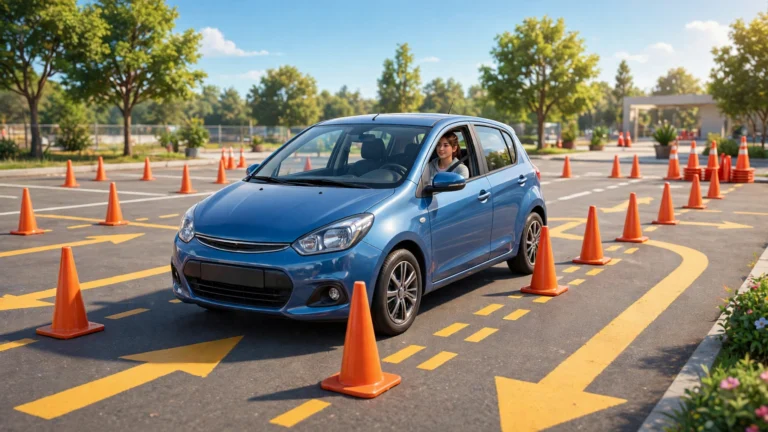
For relaxed parking and earning, choose smooth graphics that never stutter, arrow or button controls, a high parking-friendly camera, and all driving aids on. This is the calm, reliable setup that finishes levels cleanly.
For cruising with friends, use balanced graphics that look good without overheating the phone, whichever steering feels most natural, the chase camera for style, and aids on or slightly reduced depending on your confidence. Comfort matters more than ultimate precision here.
For drift practice, pick a rear-wheel drive car, reduce traction and stability control, choose a responsive steering option, and use a camera that shows the car’s angle clearly. Practise in empty areas and expect plenty of spins while you learn; they are part of the process.
FAQs
Lower the overall quality, turn off shadows and reflections, reduce resolution and close background apps. Smooth frame rate matters far more than pretty effects.
There is no single best option. Arrows suit precise parking, the wheel suits flowing driving and tilt suits relaxed cruising. Try each for a few levels and pick what feels natural.
A higher or top-down style view usually makes bay lines and obstacles clearest. Many players approach in the chase camera and switch views for the final metres.
Keep them on while learning or driving unfamiliar powerful cars. Reduce them one at a time as your car control improves, leaving ABS on the longest.
Use a rear-wheel drive car, reduce traction and stability control, choose a moderately firm suspension and practise slides in a wide empty area before trying anything near walls.
Revisit them whenever something feels wrong, when you get a new phone or when you change what you play most. Small, tested adjustments beat constant random tweaking.